

Tech Tips Series: Backing Up Your Data

January 6, 2012 — 29 Comments

Image: David Castillo Dominici / FreeDigitalPhotos.net

One of the most frustrating issues you can have with your computer is a hard drive failure.

When your hard drive fails, you can lose all of your data. This means the loss of family photographs, work documents, music, and more.

It is enough to make you want to pull your hair out. Or curl into a ball and cry. It is a devastating experience.

Let me start with what your hard drive is and how it operates.

Your hard drive is the storage unit of your computer. All of your information is storage on this device. Your pictures, your music, your documents.

If you are having trouble picturing what your hard drive does, imagine your food pantry. You have a space where all of your food is stored. Your hard drive is the computer’s pantry.

Most hard drives contain platters that stores the data magnetically. These are called mechanical drives and will be what this article focuses on.

The data in a mechanical hard drive is read when the platter spins and an arm (called the stylus) passes over the magnetically stored data.

Deutsch: Samsung HD753LJ Festplatte (750 GB Sp...

Inside of a hard drive / Image via Wikipedia

The hard drive, in a sense, works in a similar fashion as a record player.

Due to the platter rotating, a mechanical arm, and the magnetic discs hard drives can fail. The arm may touch the disc or the circuit board could fail. If this happens, your data could be lost forever.

You can help prevent the data loss by doing routine backups. It is a simple process to do and it gives you peace of mind.

To do a backup, you will need three things:

  • Your computer
  • An external hard drive
  • Backup software

The first item you already have. The external hard drive and backup software you might not. I use a Western Digital hard drive for my backups. You can pick an external hard drive up at Amazon for less than $100. Make sure you have one that will hold all of your documents, music, photos, and movies.

The other item you will need is backup software. If you are running Windows 7, you can use the built in software to create a backup schedule. If you do not have Windows 7, you can pick up backup software from Amazon.

As I have Windows 7, I will guide you through the backup software that is included.

To begin, you must connect your external hard drive to your computer.

You will now need to setup the Backup Software. You will do this by clicking on the Start Button. In the search box, type Backup.

The Backup and Restore program should be at the top of the Start Menu. Left click on Backup and Restore.

Start Menu showing Backup and Restore program

The Backup and Restore program will now open. The window will give you an option for Backup or Restore. We will be doing Backup so you will click on Set Up Backup
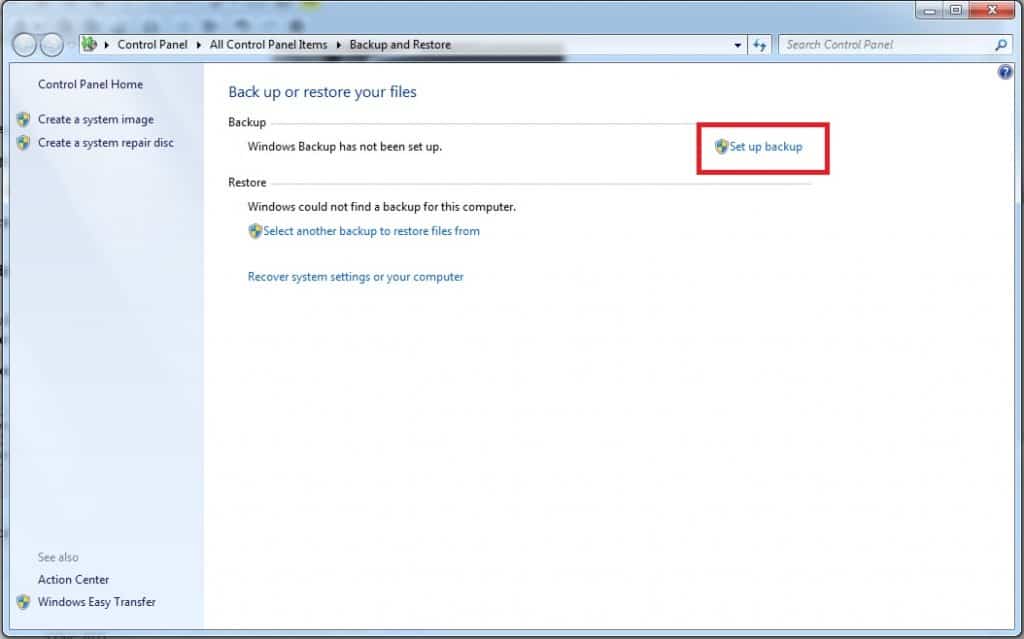
Setup screen for Backup and Restore

A new window will open asking you to select the drive you want to store the backup. This will be your external hard drive. Select the proper hard drive and click Next.

In the image below, my external hard drive is listed as the K drive. Your drive may be listed as another letter.
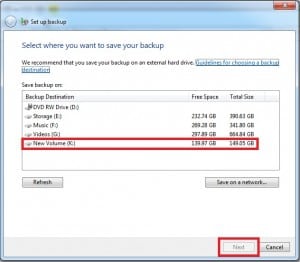
Choose your external hard drive and click next

You have now selected the hard drive that will contain the backup data. Backup and Restore will now ask you what data you would like it to backup. You have two options. You can choose to have Windows choose or you can choose the file locations manually.

If you choose Let Windows Choose, it will backup the most common folders. These include files in libraries, on your desktop, and default file locations. This option will be fine for most users. If you have stored files outside of the libraries, desktop, or default locations you will want to choose the file locations manually.

Once you have chosen the backup method, click Next.
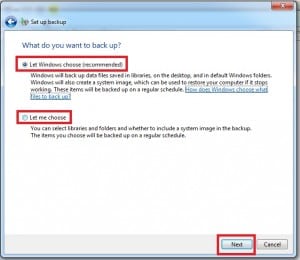
Choose if you want Windows to choose the files to backup or choose the files manually

Backup and Restore will now let you review your backup settings. It gives you a summary of what will be backed-up. It also gives you a chance to change the schedule.

If the schedule will not work for you, you can click Change Schedule to change the time and/or day of the week.

You can schedule your backup to run daily, weekly, monthly, or almost any other time frame you can think of.
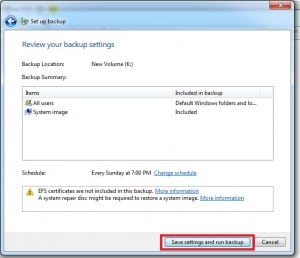
Review your backup settings

 Your backup is now scheduled and ready to run. If you would like to perform a backup now, click the button that say Backup Now. If you are willing to wait, your backup will run at the scheduled time.

The final screen shows information regarding last backup and when the backups are scheduled.
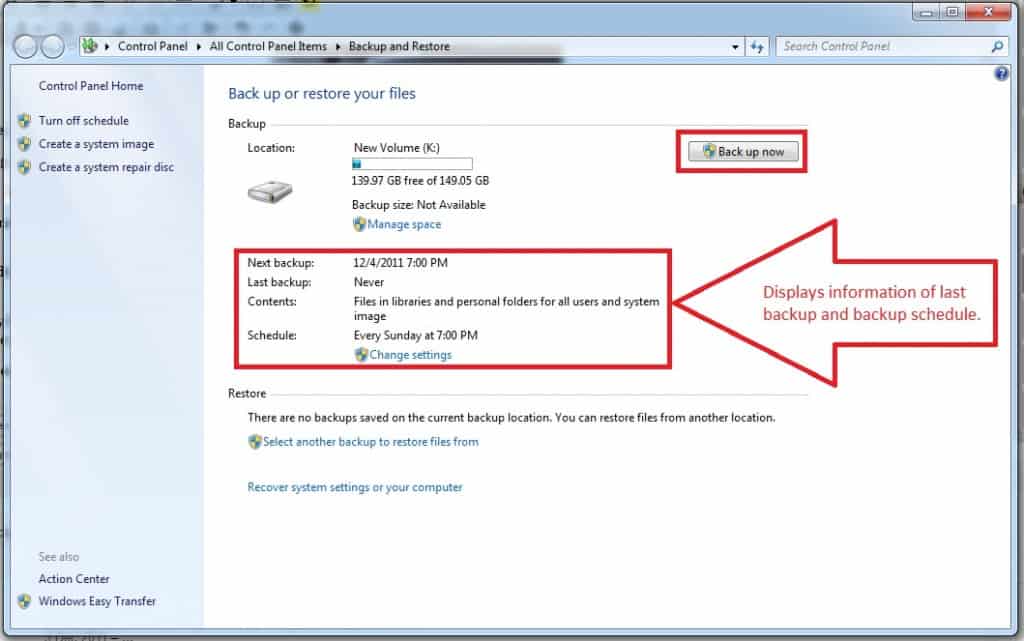
You are all set!

You have now set up your backup schedule for Windows 7. Your backup will now be on the external hard drive and will be updated according to the schedule you chose.

Be sure you have your external hard drive connected to your computer when the backup is scheduled. If it is not, the backup will not be created.

Now if your hard drive fails you will only be a couple of hours or days behind. Is that not a great feeling?

Congratulations!

Question: Have you ever had your hard drive crash? How were you affected? Please share your answers in the comment section below.

If you found this post helpful, please share it with someone you feel would benefit from the information.


Joseph Lalonde

Posts Google+

  • http://joeandancy.com/ Joe Abraham

    Good info, Joe. And you did a good work to bring it out!

    I have had my previous system crash a couple of times. But ever since I started using Windows 7, I don’t have any such problem. However, I do backup occasionally. Reading this, I think I will do it more often.

    • http://www.jmlalonde.com Joe Lalonde

      Thanks Joe. Glad you liked the post.

      That is great news Windows 7 has been working great for you and you have had no need for a backup. But it’s always nice to have one just in case something goes wrong.

      • http://www.jeffrandleman.com Jeff Randleman

        Agreed!

    • http://www.bigb94.wordpress.com Brandon

      I have Windows Vista. I don’t really have anything on my computer that is really important. Everything that is important for me is saved into dropbox and evernote right now because I only have a few pictures that are important and files for school.

      • http://joeandancy.com/ Joe Abraham

        I had a laptop with Widows Vista and it gave me lot of problems. I think Windows 7 is the most stable and efficient of all Windows OS platforms.

        • http://www.bigb94.wordpress.com Brandon

          Yeah… Mine gives me tons of problems! Always shuts down!

          • http://www.jeffrandleman.com Jeff Randleman

            I was glad to finally upgrade to 7.

  • http://www.bigb94.wordpress.com Brandon

    Awesome information! My dad recently bought this black box that backs up over 200 terebytes. He can load probably up to 5 computers worth on it. I think it was $200 at Office Max. He got it for his whole office.

    • http://joeandancy.com/ Joe Abraham

      Wow! And you call it “black box”?

      • http://www.bigb94.wordpress.com Brandon

        Oh… I don’t know! Haha… I can find out what it is actually called and let you know!

    • http://www.lifeofasteward.com/ Loren Pinilis

      200 TB for $200? Wow. You sure you don’t mean 2 TB?

      • http://www.bigb94.wordpress.com Brandon

        It might be 2TB?

        • http://www.jeffrandleman.com Jeff Randleman

          If it was 200 TB, count me in!

        • http://www.jmlalonde.com Joe Lalonde

          Most likely 2TB. 200TB would be a massive amount of storage.

          • http://www.bigb94.wordpress.com Brandon

            That is true! haha

            _____

    • http://www.jmlalonde.com Joe Lalonde

      That’s great that your dad was able to get a backup drive for the office. That is one place you don’t want to lose information.

      • http://www.bigb94.wordpress.com Brandon

        For sure!

        _____

  • http://www.lifeofasteward.com/ Loren Pinilis

    I’ve had a hard drive crash on me when I was in the middle of working on an important project with a deadline. Luckily, I was backed up and could get back up and going quickly. I make it a habit of backing up regularly. I prefer to backup to an external hard drive instead of using one of those services like carbonite, because I have to backup a LOT of data. In the event of a crash, it would take days to download the data off the carbonite servers.

    • http://www.jmlalonde.com Joe Lalonde

      Loren, you’re right. Using a service like Carbonite takes time to backup and restore from. Plus, it scares me to have my important data stored in the cloud.

  • http://stephenhaggerty.blogspot.com Stephen Haggerty

    I’ve had a HDD crash that unfortunately had to lead to me learning a lesson (was not backed up). Thanks for your tech guru-ness! :)

    • http://www.jmlalonde.com Joe Lalonde

      We’ve all been there at one point or another. Glad to hear you’ve learned a lesson and are doing backups now.

  • http://www.jeffrandleman.com Jeff Randleman

    I’ve experienced the loss of data a few times. Extremely frustrating. As a result, I now use Carbonite Online backups. Easy and secure.

    FYI, in the paragraph: “The data in a mechanical hard drive is the read when the platter spins and an arm(called the stylus) passes over the magnetically stored data.” You have an extra word, “the”, and you need a space before your opening parenthesis. Thought you might want to know that.

    Great info! Thanks!

    • http://www.jmlalonde.com Joe Lalonde

      How do you like Carbonite? While I love technology, I’ve always been reluctant to use cloud services for storage. Especially for sensitive documents.

      And thanks for pointing out the errors. When I was writing the post, I believe THE was supposed to be THEN and I left off the n. I removed the word as I think it flows better without it.

      • http://www.jeffrandleman.com Jeff Randleman

        I like Carbonite. I researched it enough to satisify my security questions, and if I have any qualms, I can choose not to backup certain documents.

        It makes things easy and sets my mind at ease. As for the comment someone left about the time it takes to restore… I know it will take a while, but we have a pretty good speed for our internet, so I don’t think that will really be an issue for me.

  • Anonymous

    What a great guide to backing up your computer. I did this last year and need to do it again. Thank you for writing this post.

    • http://www.jmlalonde.com Joe Lalonde

      Thanks Dan! Glad you found it useful.

  • http://charlielyons.ca Charlie Lyons

    Yes, I’ve fallen victim to my lack of preparation in this area. No more, though. I got myself set up with an external hard drive a few months ago and have regular backups scheduled. Thanks for the great reminder here, Joseph.

    • http://www.jmlalonde.com Joe Lalonde

      I’m sorry to hear you’ve fallen victim to this. It’s never fun and a huge headache all around.

  • Pingback: Top posts and commenters for January 2012 | Joseph Lalonde